
Various procedures on the data center
Hi Samuel,
I’m afraid the same thing is taking place as in HE 5194487, so I have to request to replace the flash drive in the same manner:
> I wanted to boot from Ubuntu installation flash drive, however when trying to go into BIOS after rebooting the server I see only Blue Screen with AB in the lower right corner, so apparently this server needs BIOS update. So could you please connect black flash drive that is labeled BIOS, reboot and spam F11 to get booted from the flash drive, and then I will take it from there to proceed to updating BIOS.
Basically, I need to update BIOS per instructions on the READEME file on the flash drive:
***
1. Save this file to your computer.2. extract the files to a DOS bootable device (such as a bootable USB stick, or CD).
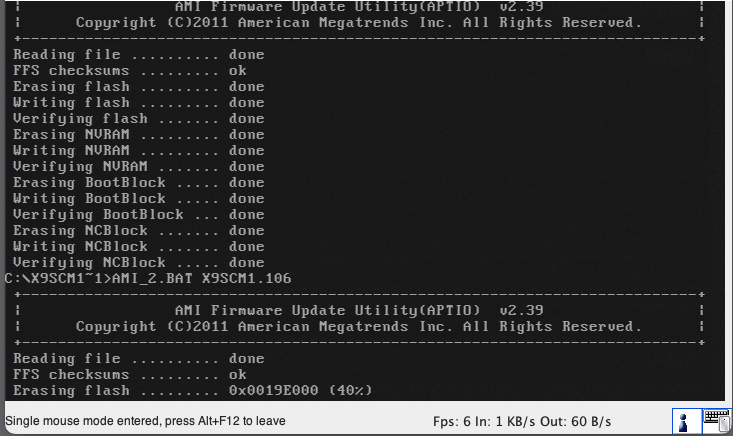
2. Boot to a DOS prompt and type AMI.BAT BIOSname.###.
4. Do not interrupt the process until the flashing is complete.
5. After you see the message of BIOS has completed the update, unplug the AC, clear the CMOS and plug in the AC and power on the system.
6. Go to the BIOS setup screen and press F9 to load the default and press F10 to save and exit.
***So if you replace the flash drive that is labeled BIOS (should be somewhere in my cabinet, maybe attached to another server), then I can perform steps from 1 to 4, and then I will need your help on step #5.
Please see the whole process in HE 5194487
Thank you very much,
Alan
0) Please refer to below to re-flash the bios (https://www.supermicro.com/support/faqs/faq.cfm?faq=20698)
1. Download the BIOS again to ensure you have complete files. And rename the file "x10slmp5.424" to "super.rom"
_http://www.supermicro.com/about/policies/disclaimer.cfm?url=/support/res...
2. Copy the "Super.ROM" binary image file into a USB flash device or a writable CD/DVD disc's Root "\" Directory.
3. Insert the USB device that contains the new BIOS binary image ("super.rom") and power the system down.
4. While powering on the system, press and hold and simultaneously on your keyboard until the USB device's LED indicator comes on. This will take a few seconds or up to one minute.
5. Once the USB device's LED is on, release the and keys. The system may generate beep codes to indicate that the BIOS ROM firmware is being reprogrammed. The screen will also display a message as shown below. DO NOT INTERRUPT THIS PROCESS!
6. When the Boot Sector Recovery Process is complete, the system will reboot automatically .
7. When DOS prompt appear, please type AMI.BAT BIOSname.###. (Do Not rename any file!)
8. Do not interrupt the process until the flashing is complete.
9. After you see the message of BIOS has completed the update, unplug the AC, clear the CMOS and plug in the AC and power on the system. then press F1 to go to the BIOS setup screen and press F9 to load the default and press F10 to save and exit."
1) 1. extract the files to a DOS bootable device (such as a bootable USB stick, or CD).
2. Boot to a DOS prompt and type AMI.BAT BIOSname.###.
4. Do not interrupt the process until the flashing is complete.
5. After you see the message of BIOS has completed the update, unplug the AC, clear the CMOS and plug in the AC and power on the system.
6. Go to the BIOS setup screen and press F9 to load the default and press F10 to save and exit.
- Log in to post comments
- Copy all the steps